
Setup guide
Download & use CodeCoach
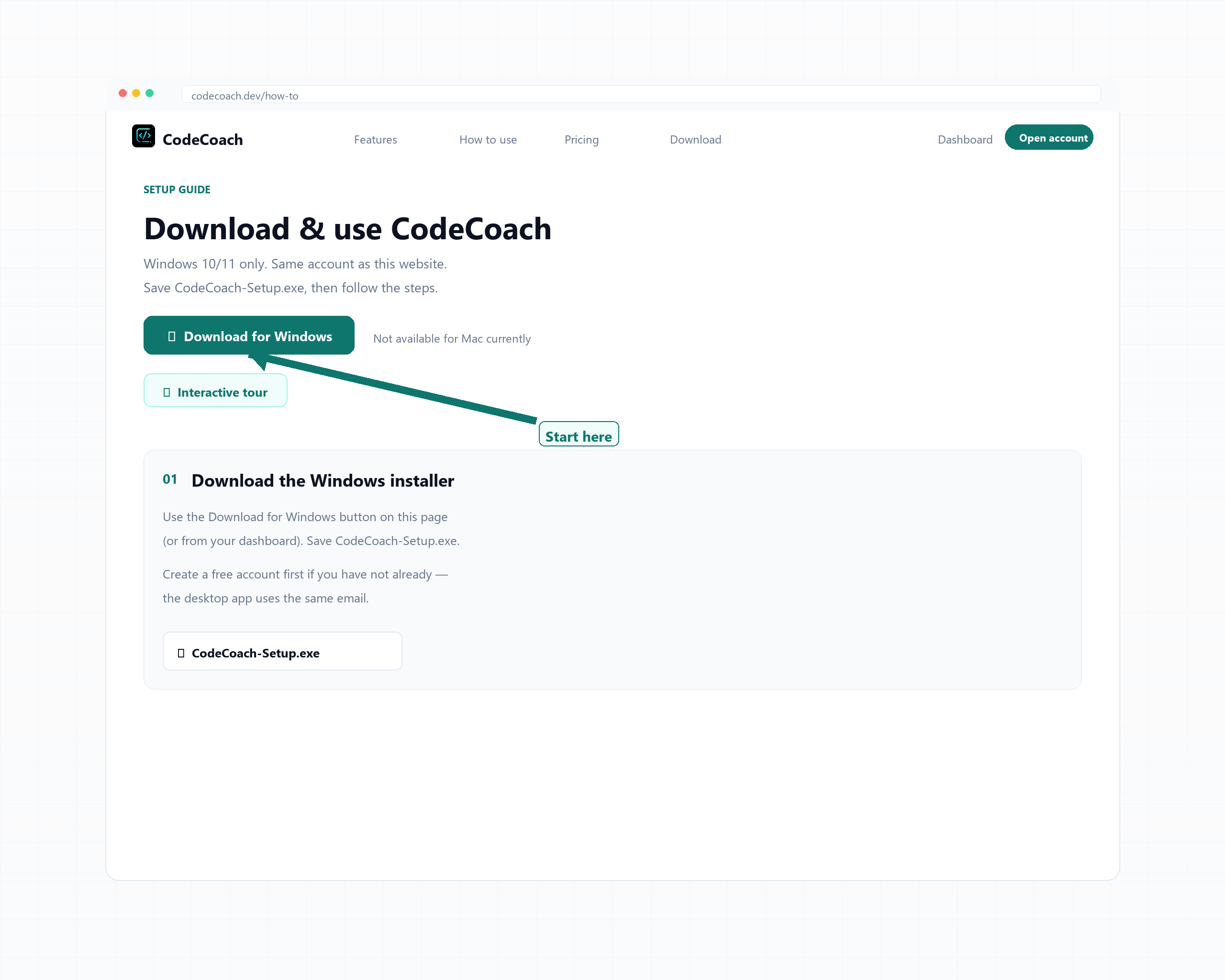
Windows 10/11 only. Same account as this website. Click Download for Windows to walk through the setup guide — the installer downloads on the last step.
Not available for Mac currently
- 01
Download the Windows installer
Click Download for Windows on this page to walk through setup. At the end of the guide you get CodeCoach-Setup.exe. Create a free account on this site first if you have not already — the desktop app uses the same email.
- 02
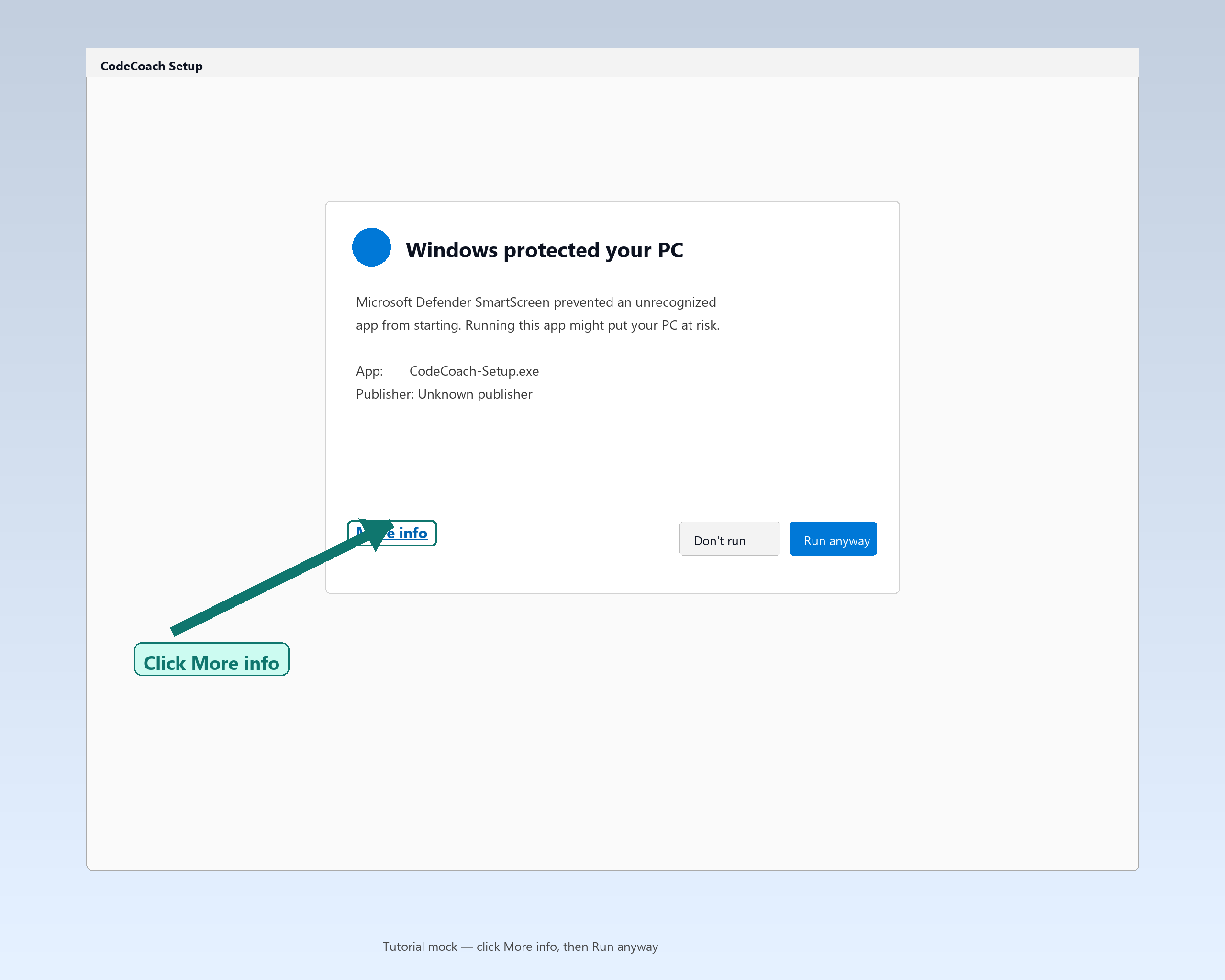
If Windows shows a warning, open More info
Even with a signed installer, first-time downloads from a new publisher can still show SmartScreen or “Windows protected your PC” until reputation builds. Click More info — do not close the dialog yet. Only continue if you downloaded from this official CodeCoach site.
- Only continue if you downloaded from this official CodeCoach website.
- After we ship a code-signed Setup.exe, warnings become less common over time.
- Screens below are educational tutorial mocks, not exact Microsoft UI replicas.
- 03
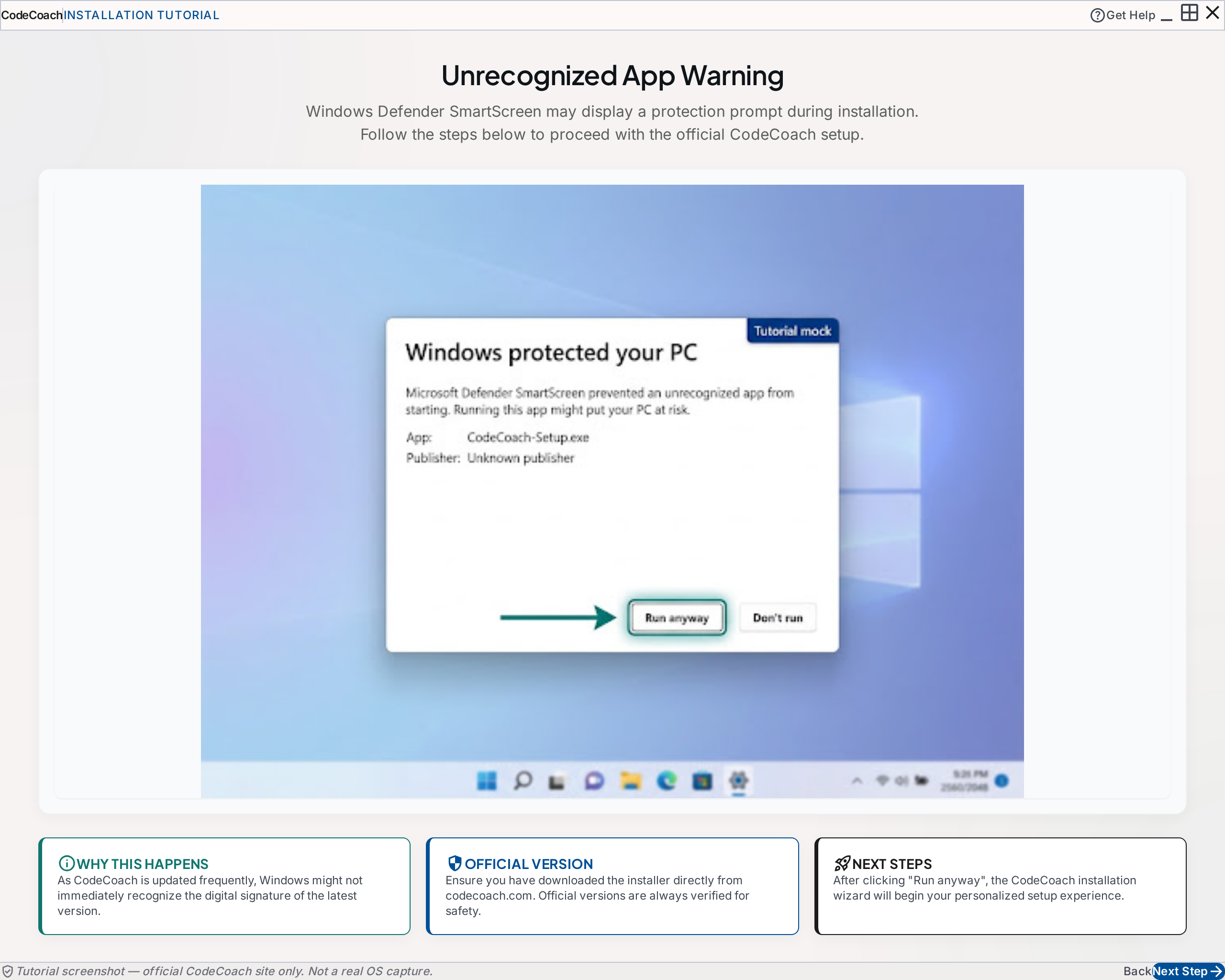
Choose Run anyway (if prompted)
If SmartScreen still prompts, choose Run anyway to start the installer. If your antivirus prompts, allow CodeCoach from this site’s download.
- 04
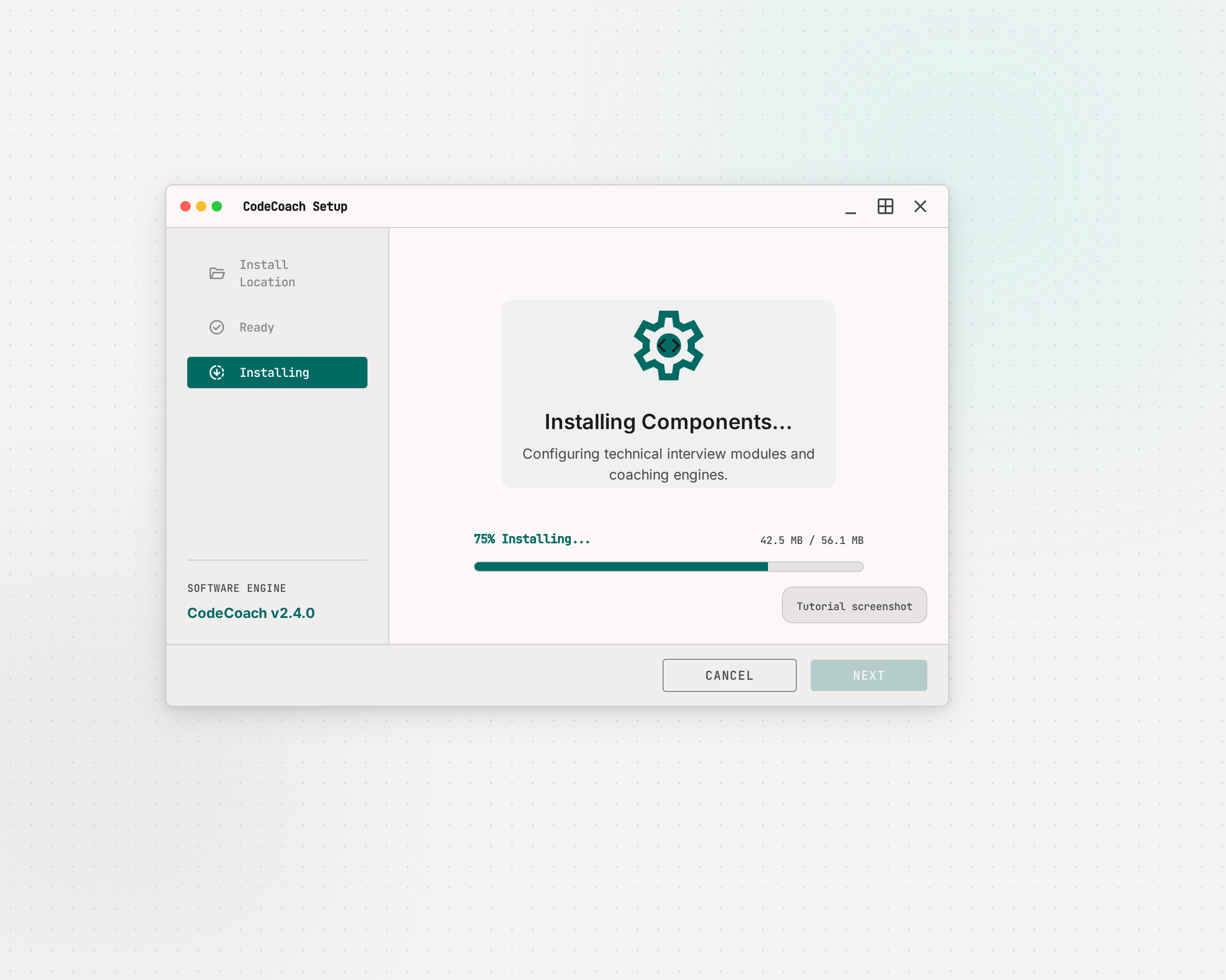
Complete the installer
Follow CodeCoach Setup: pick an install location if asked, then Next / Install. When it finishes, launch CodeCoach from the Start menu or desktop shortcut.
- 05
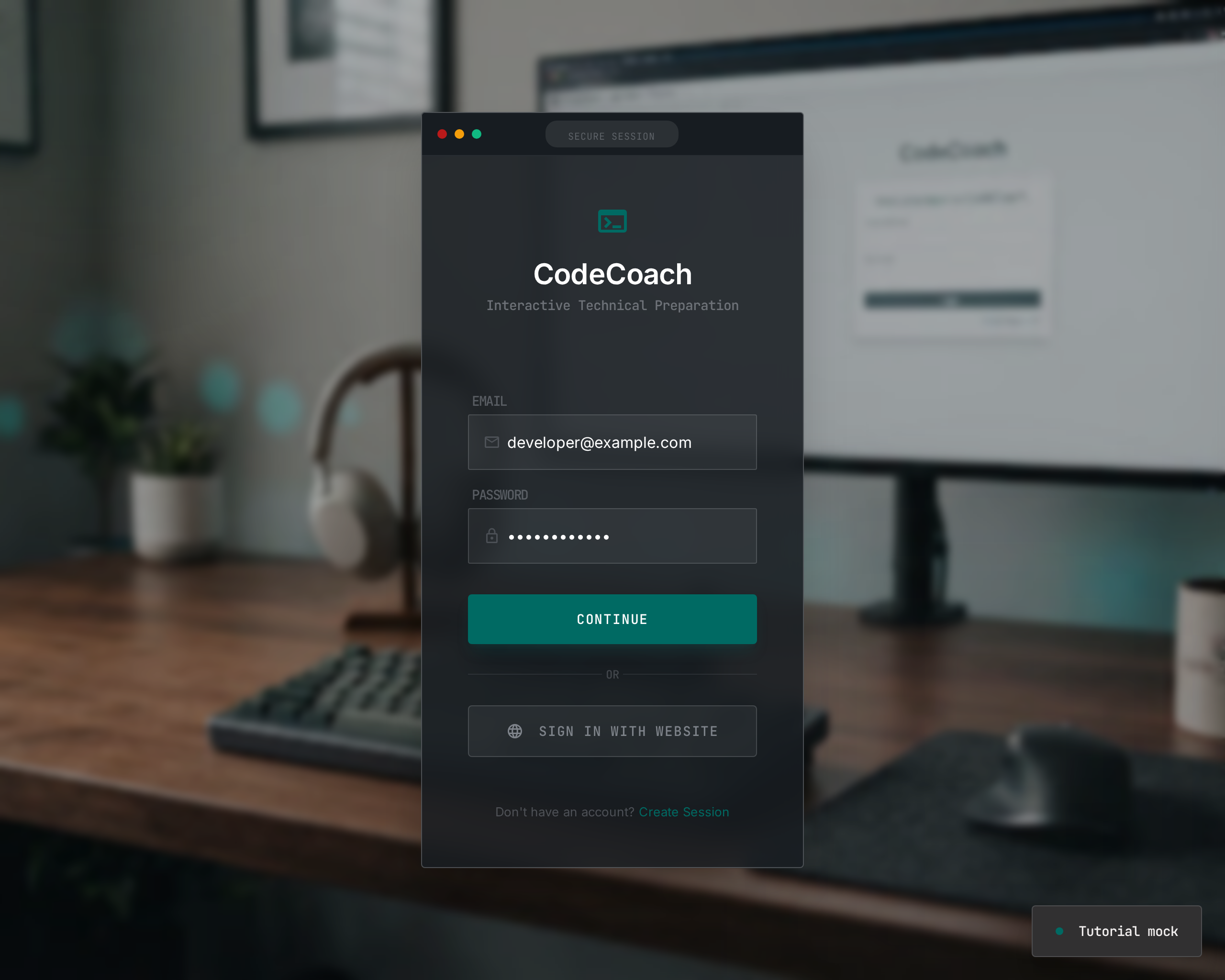
Sign in with the same account
In the app, continue with your website email (or Sign in with website). One Supabase account covers web + desktop. You should not paste AI API keys into the app.
- 06
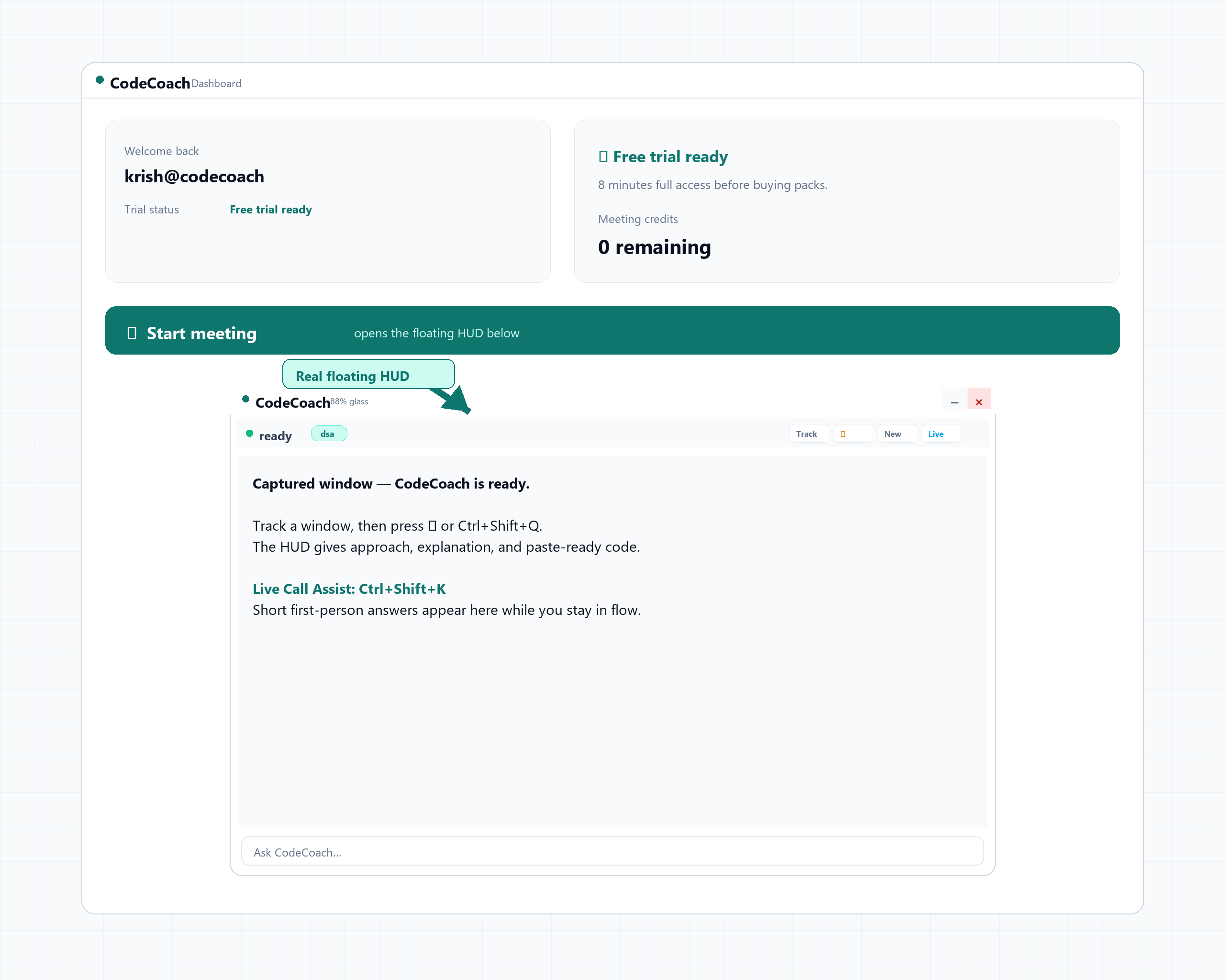
Start from Home
After the free trial window, Start meeting on Home asks you to pick a pipeline — Tech, Non-Tech, or General — then opens the HUD and uses 1 credit for up to 90 continuous minutes. During trial, you can explore every feature without spending a pack credit.
- 07
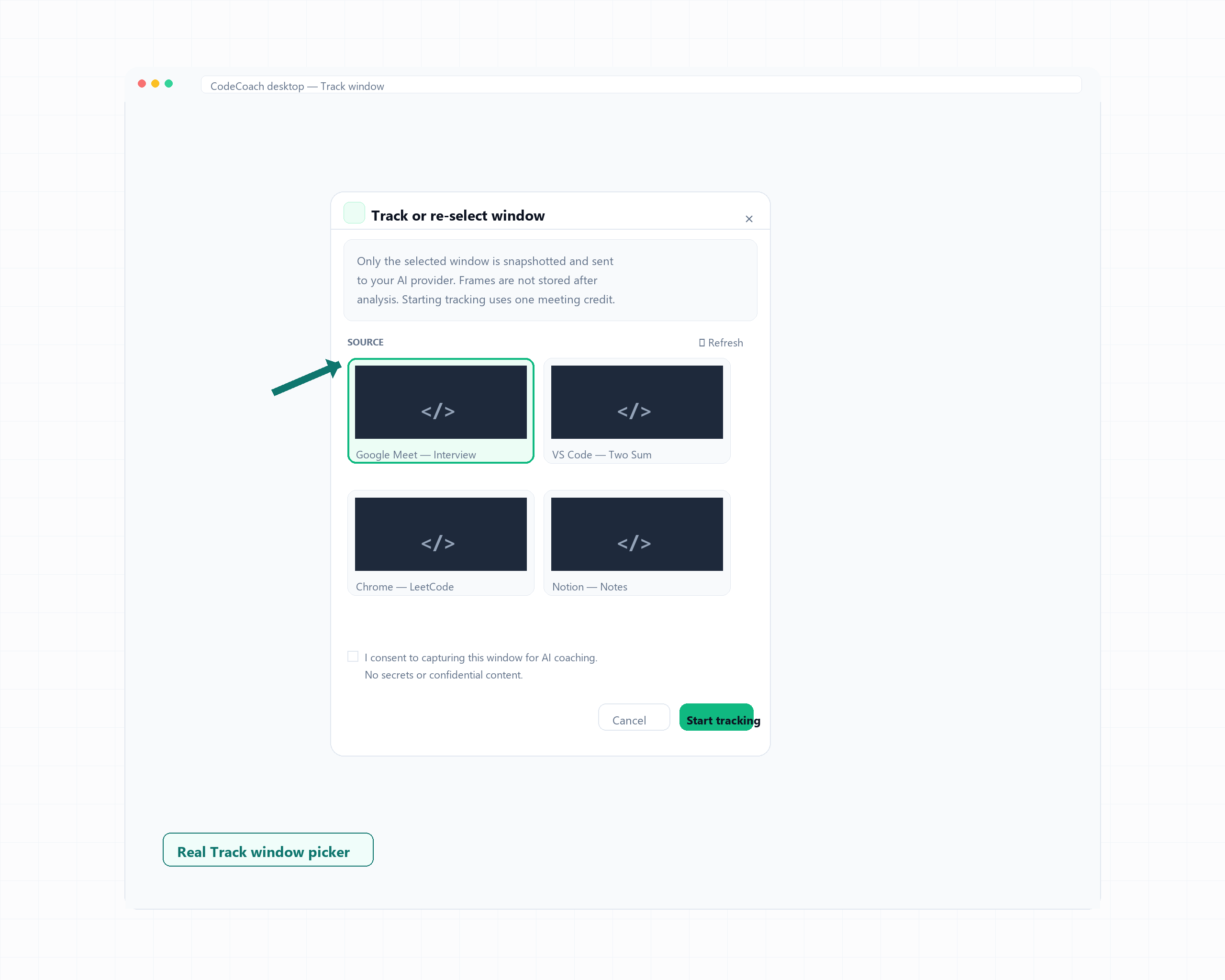
Track a window
Click Track and pick the interview, IDE, or browser window you want coached. CodeCoach focuses captures on that window.
- 08
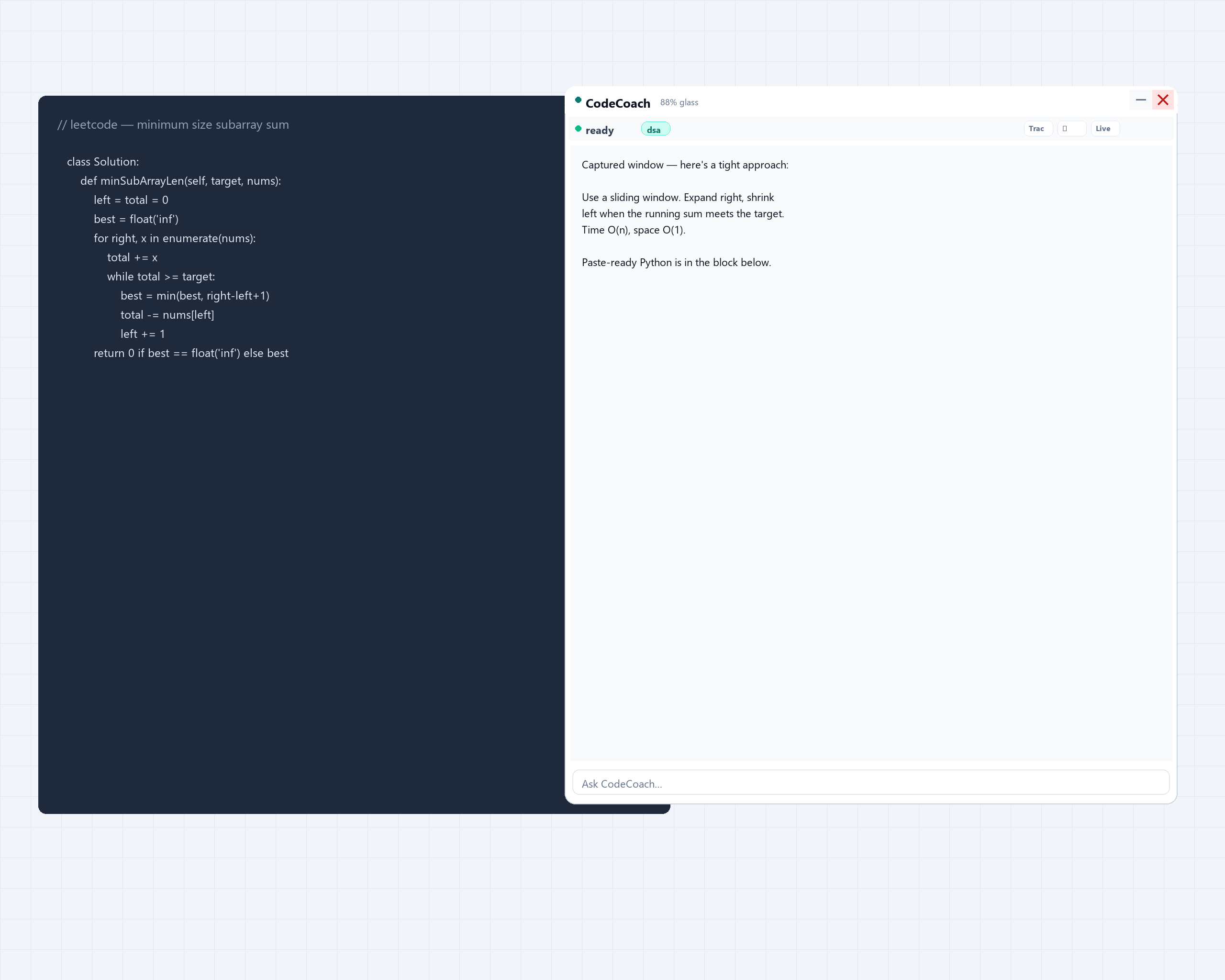
Capture for coaching
When the problem or UI is visible, capture with the lightning control or Ctrl+Shift+Q. Explanations and paste-ready help appear in the floating HUD chat.
- 09
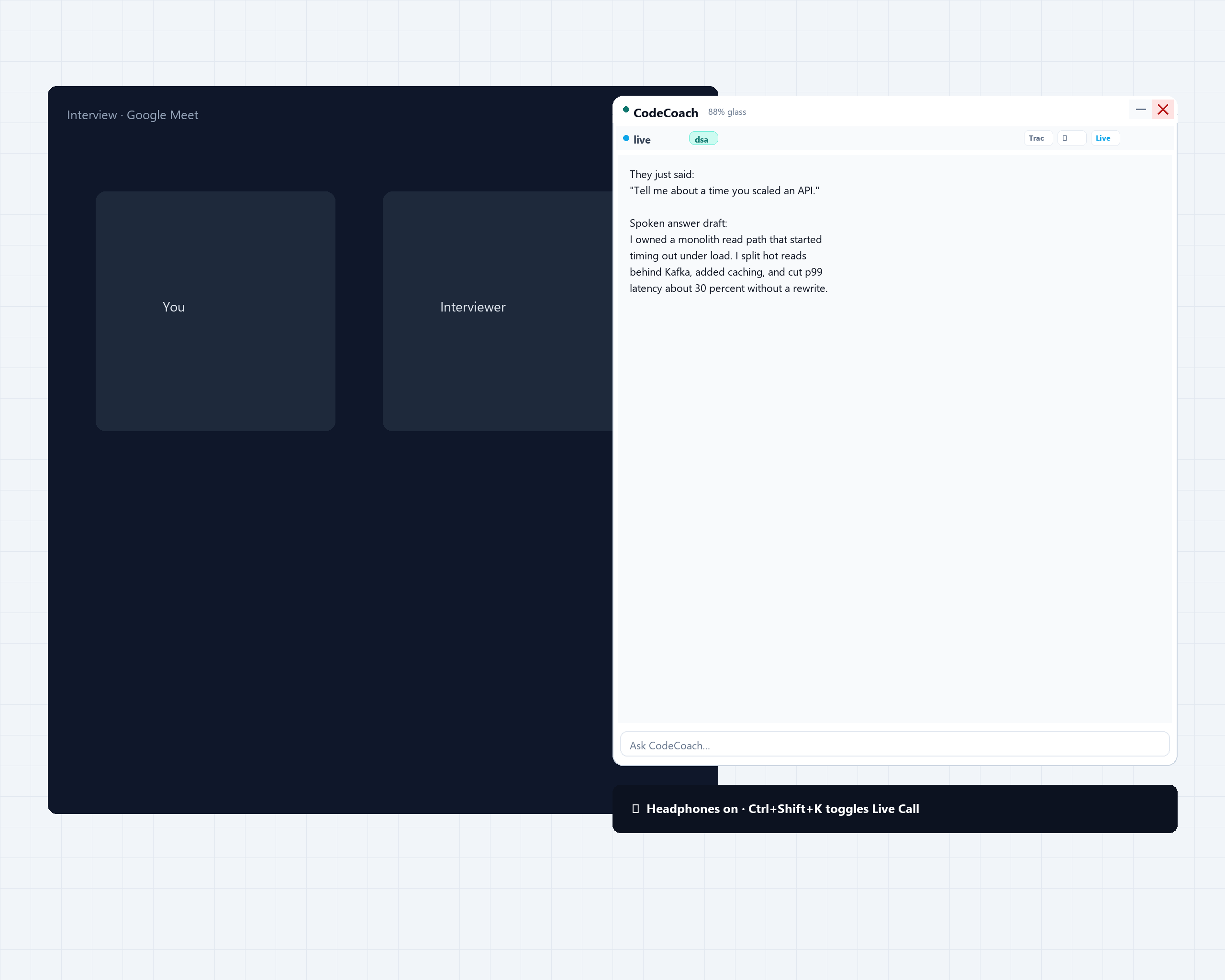
Use Live Call Assist
Wear headphones. Start Live Call with Ctrl+Shift+K. CodeCoach listens to the other person and drafts short written answers you can read aloud — grounded in your knowledge vault. Use only when recording is allowed.
Keyboard shortcuts
Available in the floating HUD once a meeting or free trial is active. Prefer shortcuts when you want to keep working in the interview window without clicking the coach panel.
Ctrl+Shift+QCapture the tracked windowCtrl+Shift+KToggle voice / Live CallCtrl+Shift+NNew problem (clear slate)Ctrl+SpaceHide / show the HUDCtrl+↑ / Ctrl+↓Scroll HUD chatCtrl+EnterSend chat message
Responsible meeting tips
CodeCoach is for practice, mock interviews, personal coaching, and meetings where AI help is allowed. It is not for proctored exams, graded assessments, or interviews that forbid external assistance. Full rules are in our Terms of use and Privacy policy.
- Confirm permission first. Only use coaching when your school, employer, or interviewer allows it.
- Check your share preview. HUD capture exclusion works with many Windows screen-share APIs, but not every tool. Always preview what the other person sees before you join.
- Prefer hotkeys over clicking the HUD. Shortcuts (Ctrl+Shift+Q, Ctrl+Shift+K, Ctrl+Space, and others above) keep you in the interview window and reduce accidental focus switches away from the call.
- Keep natural eye contact and presence. Look toward the interviewer or camera as you would in any professional meeting. Glance briefly at notes if needed, then return — long off-screen staring looks unnatural even in ordinary video calls.
- Speak in your own words. Use answers as cues, not a script. Interviewers notice robotic reading more than a short pause to think.
- Protect sensitive content. Do not capture passwords, banking, private chats, or confidential company data. Add only accurate details you are allowed to store in the Knowledge Vault.
- Use headphones for Live Call. Loopback audio works best with headphones so your mic does not re-capture spoken answers.